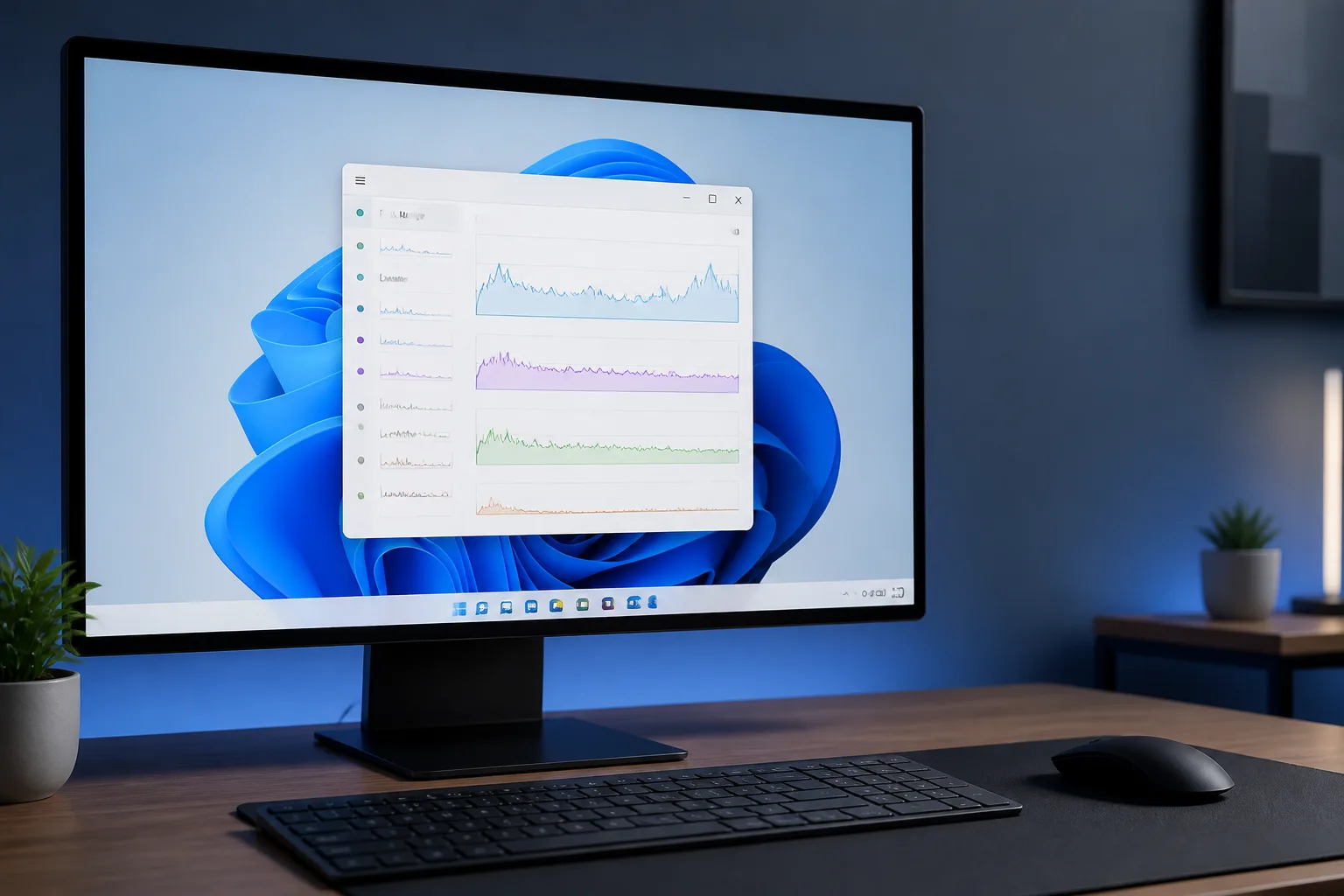
Learn how to use Windows 11 Task Manager to identify high CPU, memory, disk and network usage, manage startup apps and troubleshoot safely.
Windows 11 Task Manager helps you find out which apps and processes are making a computer slow, noisy or unresponsive. You can use it to investigate high CPU, memory, disk or network usage, but it is important not to end unfamiliar system processes blindly.
Open Task Manager in Windows 11
Use any of these methods:
- Press Ctrl + Shift + Esc.
- Right-click the Start button and select Task Manager.
- Press Ctrl + Alt + Delete, then choose Task Manager.
- Search for
Task Managerfrom the Start menu.
If the compact view appears, select More details to see the full set of tabs.
Check which apps are using the most resources
Open the Processes tab. The columns show current usage for CPU, memory, disk, network and, on some systems, GPU.
Sort the list by resource use
- Select the CPU heading to place the heaviest users at the top.
- Check Memory if the computer is running out of RAM or using the page file heavily.
- Select Disk when Windows is slow to open files or applications.
- Use Network to find apps downloading or uploading data.
- Select the heading again to reverse the order if necessary.
Task Manager reports usage as a changing snapshot. Watch a process for a minute or two rather than treating one brief spike as proof of a problem.
Understand the main readings
- High CPU: a programme is using significant processing power. Short bursts are normal, but sustained high usage can cause heat, fan noise and sluggishness.
- High memory: available RAM is becoming limited. Windows may then move data to storage, which can make the computer feel slow.
- High disk: an app, update, search index or background service is reading or writing heavily.
- High network: an application is transferring data. This may be expected during downloads, cloud synchronisation or updates.
Inspect a suspicious process before taking action
Expand an app using the arrow beside its name. This can reveal separate helper processes, browser tabs or background components.
Right-click a process and consider these safer options:
- Search online: searches the process name so you can identify it.
- Open file location: shows where the executable is stored. Be cautious if an important-looking process runs from an unusual folder.
- Properties: displays details such as the publisher and file location.
- Go to details: shows the corresponding detailed process entry.
Do not assume that a familiar name is genuine. Malware can use names similar to legitimate Windows components. If you suspect an infection, run a scan with Windows Security and keep the file open for further investigation rather than deleting it manually.
End an unresponsive app safely
If a normal application has stopped responding, select it under Processes and choose End task. Save work first whenever possible, because unsaved changes may be lost.
Use End task mainly for applications you recognise, such as a frozen browser, game or document editor. Ending a background component may close an application or cause data loss, and ending a Windows process can make the system unstable or force a restart.
If Windows displays a warning or you are unsure what a process does, cancel the action and restart the computer instead. A restart often clears a temporary problem more safely.
Use the Performance tab for more detail
Select Performance to view graphs for the processor, memory, disks, network adapters and graphics hardware.
CPU
Check whether usage remains high when no demanding programme is open. Select Open Resource Monitor for a more detailed breakdown of processes and activity.
Memory
Look at the amount in use, available memory and committed memory. Closing unused applications and browser tabs may help. If memory use rises steadily over time in one application, update it or check the publisher’s support guidance.
Disk
Identify whether the drive is busy or whether the drive itself is nearly full. Windows updates, antivirus scans, file indexing and cloud synchronisation can all create temporary activity.
Network
Use the network graph to confirm whether an unexpected transfer is taking place. Pause known downloads or synchronisation jobs before investigating unfamiliar activity.
Manage applications that start with Windows
Select Startup apps to see programmes that launch when you sign in.
- Review the Startup impact column.
- Select an app you recognise and no longer need immediately.
- Choose Disable to stop it starting automatically.
- Restart Windows and check whether startup or performance improves.
Disabling a startup app does not normally uninstall it. You can still open it manually later. Avoid disabling security software, hardware utilities or drivers unless you understand what they control. If an app is unknown, search for its publisher and purpose before changing it.
Find more information in App history and Details
The App history tab can show CPU time and network usage for supported Microsoft Store apps. It is useful for spotting applications that have consumed resources over a longer period.
The Details tab lists individual processes. It is intended for advanced troubleshooting, so avoid changing priorities, affinities or other settings unless a trusted support guide specifically instructs you. These changes can reduce stability and rarely fix the underlying cause.
Practical troubleshooting checklist
- Save your work and close programmes you are not using.
- Restart Windows if the problem began suddenly.
- Install pending Windows and application updates from trusted sources.
- Check Task Manager again after the restart and note the process using resources.
- Run a scan with Windows Security if an unfamiliar process behaves suspiciously.
- Check the application’s own settings for downloads, synchronisation or background activity.
- Use a clean boot or contact the software publisher if the issue continues and appears linked to a particular programme.
When high usage is normal
High usage is not automatically a fault. Video editing, gaming, large downloads, Windows updates, antivirus scans and file compression can use substantial resources. The important questions are whether the activity is expected, whether it stops when the task finishes and whether the computer remains responsive.
Safety cautions
- Do not end processes simply because their names look unfamiliar.
- Do not delete executable files from system folders to solve a performance problem.
- Do not disable Windows Security or other important protections to reduce resource use.
- Back up important files before making major system or software changes.
- If the computer repeatedly crashes, overheats or shows signs of malware, seek further technical help.
Conclusion
Task Manager is a useful first step for investigating Windows 11 Task Manager high CPU memory usage and other performance problems. Sort the Processes tab, observe activity over time, identify software carefully and use safer actions such as closing recognised apps, managing startup entries and restarting Windows. Avoid ending essential processes until you know exactly what they do.