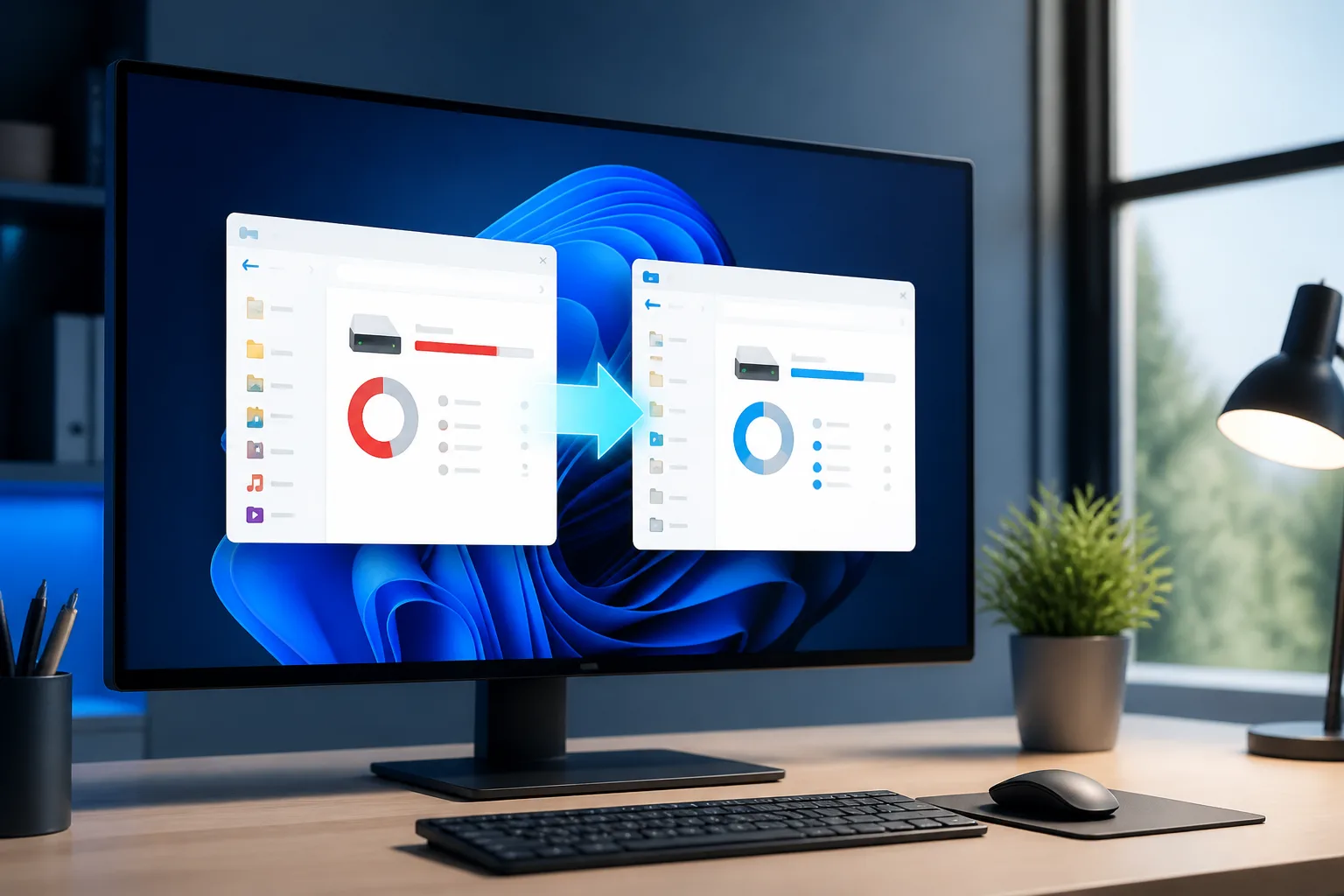
Learn how to find what is using your Windows 11 drive and safely remove temporary files, old updates, unused apps and other clutter.
A nearly full drive can make Windows 11 harder to use and may prevent updates, downloads and applications from working properly. The safest approach is to review what is taking up space before deleting anything, then use Windows’ built-in cleanup tools.
This guide shows how to free up storage space in Windows 11 while protecting personal documents, photographs and other important files.
Check what is using your storage
- Open Settings by pressing
Windows+I. - Select System, then Storage.
- Wait for Windows to calculate the storage categories.
You will normally see categories such as Installed apps, Temporary files, Documents, Pictures, Videos and Other. Select a category to investigate it before removing anything.
If the drive is almost full, begin with temporary files and applications rather than manually deleting files from system folders.
Safely remove temporary files
- Go to Settings > System > Storage > Temporary files.
- Allow Windows to finish scanning.
- Review each category carefully.
- Select the items you want to remove and choose Remove files.
Commonly safe choices include temporary files, thumbnails, delivery optimisation files, DirectX Shader Cache and Windows error reporting files. These can be recreated when needed.
Be more cautious with Downloads. Selecting it can delete files in your Downloads folder, including installers and documents you may still need. Open the folder and check its contents first.
The Previous Windows installation(s) option can recover substantial space, but removing it removes the ability to roll back easily to the previous Windows version. Keep it if you recently upgraded and may need to undo the upgrade.
Empty the Recycle Bin
Files in the Recycle Bin still occupy drive space.
- Right-click the Recycle Bin on the desktop.
- Select Open if you want to check the files.
- Choose Empty Recycle Bin when you are certain nothing is needed.
After emptying it, recovering files is more difficult, so check important folders first.
Uninstall applications and games you no longer use
- Open Settings > Apps > Installed apps.
- Use the sort option and choose Size to find large applications.
- Select the three-dot menu beside an application.
- Choose Uninstall and follow the instructions.
Do not remove an application simply because its name is unfamiliar. Search for it first, particularly if it is a driver, hardware utility, security tool or component supplied by your computer manufacturer. Games and large creative applications are often the safest space-saving targets when you no longer use them.
Use Storage Sense automatically
Storage Sense can regularly remove suitable temporary files and manage the Recycle Bin.
- Open Settings > System > Storage.
- Select Storage Sense.
- Turn on Automatic User content cleanup.
- Choose how often Storage Sense should run.
- Review the settings for the Recycle Bin and Downloads.
For extra safety, leave automatic deletion from Downloads turned off unless you are comfortable with Windows removing files that have not been opened for the selected period. Storage Sense does not replace a backup.
Find large personal files
Videos, virtual machines, game libraries, installers and duplicate downloads can occupy more space than Windows itself.
- Open File Explorer and select This PC.
- Open folders such as Downloads, Videos, Documents and Pictures.
- Use the search box with a size filter, or sort files by Size where available.
- Move files you still need to an external drive or trusted cloud storage.
- Delete only files you have identified and backed up where appropriate.
Do not manually delete unknown files from C:\Windows, C:\Program Files or hidden system folders. Use Windows’ cleanup and uninstall options instead.
Move where new files are saved
If your system drive fills repeatedly, change the default save locations.
- Go to Settings > System > Storage > Advanced storage settings.
- Select Where new content is saved.
- Choose another available drive for new apps, documents, music, pictures or videos.
You can also move an existing personal folder by right-clicking it in File Explorer, selecting Properties, opening the Location tab and choosing Move. Make sure the destination drive remains connected and backed up.
Reduce future storage problems
- Review Downloads regularly and remove old installers.
- Uninstall games and applications you no longer use.
- Store large media files on a suitable external drive or cloud service.
- Keep at least one backup of important personal files.
- Leave some free space for Windows updates and normal operation.
- Run Storage Sense periodically rather than waiting for the drive to become full.
Troubleshooting
Temporary files keep returning
Some temporary data is recreated during normal Windows use, so it may return after cleanup. If the same category grows unusually quickly, install pending Windows updates, restart the computer and check again. Persistent growth may be caused by an application, update problem or failing drive.
The storage total does not add up
Windows may include reserved storage, system files, recovery data and categories that are calculated separately. Restart the computer and allow the Storage page time to rescan. A disk-usage tool can help locate large folders, but do not delete system files based solely on its results.
Windows says there is not enough space to update
Empty suitable temporary files, remove or move large personal files, and uninstall an unused application. Do not delete the Windows folder or disable security software to make room. If necessary, connect an external drive and follow the storage guidance shown by Windows Update.
Conclusion
The safest way to free up storage space in Windows 11 is to start with the Storage settings page, remove reviewed temporary files, empty the Recycle Bin, uninstall unused applications and move large personal files. Storage Sense can then help prevent the drive from filling up again, provided you check its automatic deletion settings carefully.