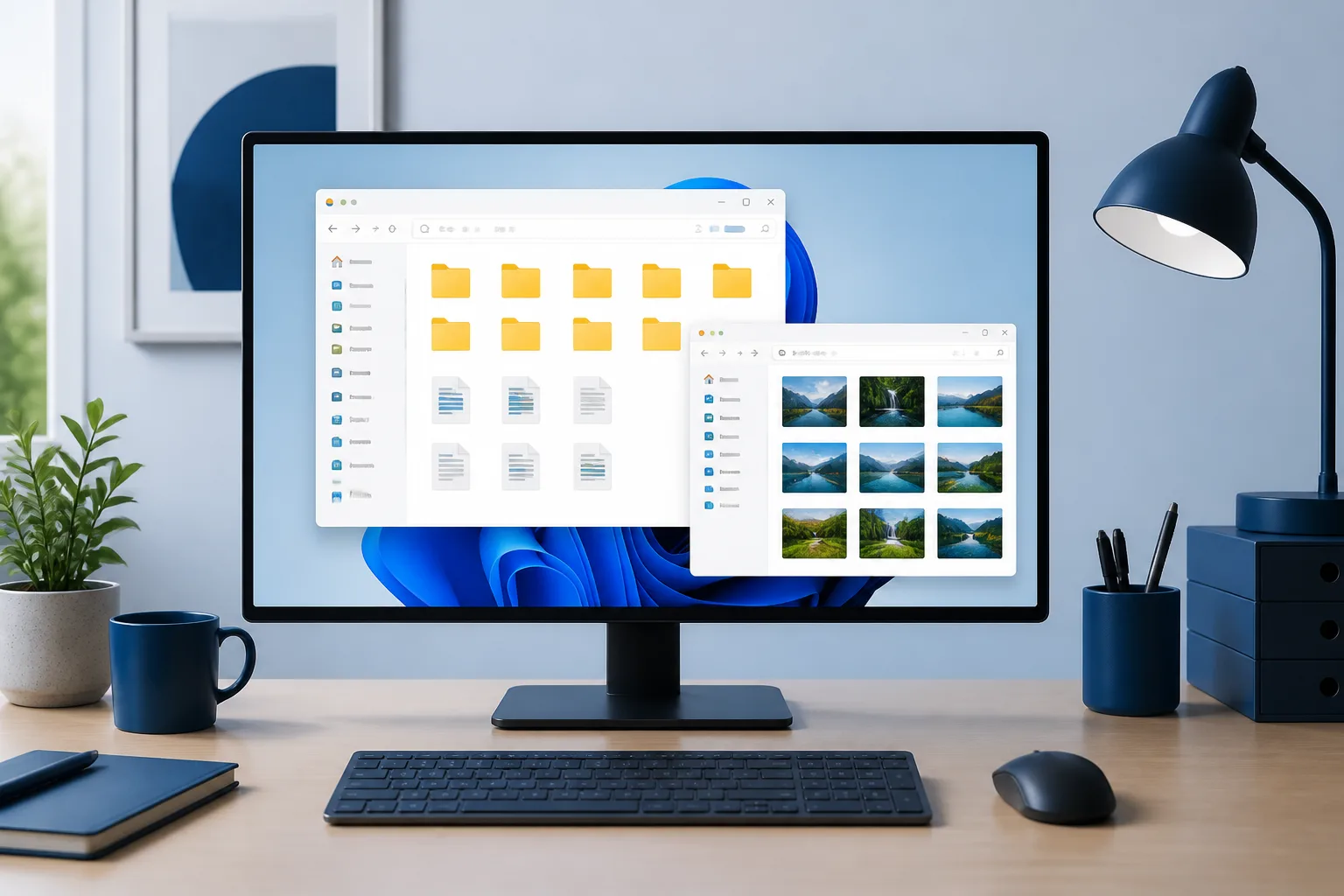
A consistent file system makes documents, photos, downloads and project work much easier to find. You do not need complicated software: a few sensible folders, predictable names and regular maintenance are usually enough.
Start with a small number of main folders
Keep your top-level structure simple. Open File Explorer with Windows key + E, then open your user folder, usually found at C:\Users\YourName. You can use the existing Documents, Pictures and Videos folders, or create a structure such as:
- Documents – letters, records, receipts and personal paperwork
- Projects – work, study, website or creative projects
- Photos – images arranged by year or event
- Media – music, videos and other large media files
- Archive – older material you still need to keep
Avoid creating dozens of top-level folders. If a category contains only a few files, it may not need its own folder.
Build folders from broad to specific
Organise files in a predictable order. For example, a project might use:
Projects
└── Website Redesign
    ├── 01 Planning
    ├── 02 Source Files
    ├── 03 Exports
    ├── 04 Client Feedback
    └── 05 Archive
Numbered folders are useful when you want them to appear in a particular order. Use the same pattern for similar projects so you do not have to learn a new system each time.
Use dates in a consistent format
For files that are organised by date, use the year-month-day format: 2026-03-24. Windows will then sort dates correctly by name. Examples include:
2026-03-24_Insurance-renewal.pdf2025-08-15_Family-holiday_Paris2026-01-31_Monthly-budget.xlsx
Use four-digit years and leading zeroes for months and days. Avoid relying on names such as “new”, “latest” or “final”, which become unclear over time.
Create file names that explain the contents
A useful file name answers three questions: what is it, when is it relevant and which version is it? A practical format is:
YYYY-MM-DD_Description_Version.Extension
For example:
2026-03-24_Garden-quote_v01.docx2026-03-24_Garden-quote_v02-client-notes.docx2026-03-24_Garden-quote_APPROVED.pdf
Keep names reasonably short. Avoid characters that Windows does not allow in file names, including \ / : * ? " < > |. Hyphens and underscores are safer than unusual punctuation.
Use version numbers instead of repeated words
When editing a document, increase the version number rather than creating files called “final”, “final new” and “really final”. Use leading zeroes if you expect many versions, such as v01, v02 and v10.
Once a document has been approved, create a clearly marked final copy, preferably as a PDF if it is meant for sharing. Keep editable working files in a separate folder if you may need to change them later.
Deal with the Downloads folder
Downloads is a temporary holding area, not a permanent filing system. Once a download is complete:
- Open Downloads and sort by Date modified.
- Delete installers, duplicate files and items you no longer need.
- Move important documents to Documents or the relevant project folder.
- Move photos, videos and music to their proper media folders.
- Keep a downloaded installer only if you have a reason to use it again.
Be careful when deleting files from Downloads. Confirm that you have opened or moved anything important first.
Keep the desktop for temporary items
A crowded desktop makes it harder to find things and can be included in desktop synchronisation or backup systems. Keep only shortcuts and a small number of temporary files there. Move completed work into your folder structure and empty the Recycle Bin when you are sure you no longer need the deleted files.
Organise photos by year and event
A simple photo structure is:
Photos
├── 2025
│   ├── 2025-06_Lake-District
│   └── 2025-12_Christmas
└── 2026
    └── 2026-03_Birthday
If you import photos from a phone, remove obvious duplicates before sorting them. Do not delete originals until you have checked that the copies you want to keep open correctly.
Archive completed work
When a project is finished, move it into an Archive folder rather than leaving it among active work. You can organise archives by year:
Archive
├── 2024
├── 2025
└── 2026
Archive folders should be easy to search but should not contain files that you edit regularly. For sensitive records, consider whether they need additional protection and ensure that your backup includes them.
Use File Explorer features to find files
- Use the search box in File Explorer to search by file name, extension or text where supported.
- Choose Details view to see file type, size and modified date.
- Sort by Date modified to find recent work.
- Pin frequently used folders to Quick access.
- Use consistent extensions rather than renaming files to hide their type.
Set a simple maintenance routine
Spend a few minutes each week or month maintaining your system:
- Clear unnecessary items from Downloads.
- Move desktop files to permanent folders.
- Rename files that are difficult to identify.
- Move completed projects to Archive.
- Remove obvious duplicates after checking them.
- Check that important files are included in a backup.
Protect important files
Organisation is not a substitute for backup. Keep at least one separate copy of important files, such as on an external drive or a reputable cloud service. Ideally, keep a backup disconnected when it is not being used so that a malware infection cannot easily affect both copies.
Do not permanently delete files simply to tidy a folder. If you are unsure, move them to a dated review folder, such as To review_2026-03, and decide later.
A practical system to start today
If your files are currently scattered, do not try to perfect everything at once. Create the main folders, move obvious items first, and leave uncertain files in a temporary review folder. After a week or two, adjust the structure based on how you actually use it.
Conclusion
The best way to organise files on a Windows PC is to use a small number of clear folders, descriptive names, consistent dates and simple version numbers. Keep Downloads and the desktop temporary, archive finished work and back up anything important. A few regular habits will keep the system useful without turning file management into a chore.